
Apple recently changed how iTunes works and you now have to manually install your ringtones. What iTunes removed was the automatic management of ringtones. Now the only option is to manually install ringtones using iTunes. To do this you can follow the steps listed in this Apple help article: https://support.apple.com/en-us/HT207955.
I have included the relevant parts of Apple's article here:
Move ringtones from iTunes to your iPhone, iPad, or iPod touch
If you have a ringtone or tone in iTunes on your Mac or PC that you want to move to your iOS device, you can manually add it to your device using iTunes.
- Connect your device to your computer.
- Open iTunes. Make sure that you have the latest version.
- On your computer, find the ringtone or tone that you want to add to your device. If the ringtone or tone previously appeared in your iTunes library, you can find it in the Tones folder of your iTunes media folder.
- Select the tone that you want to add to your device and copy it. (You can use a keyboard shortcut.)
- Return to iTunes and go to the Library tab of Music.
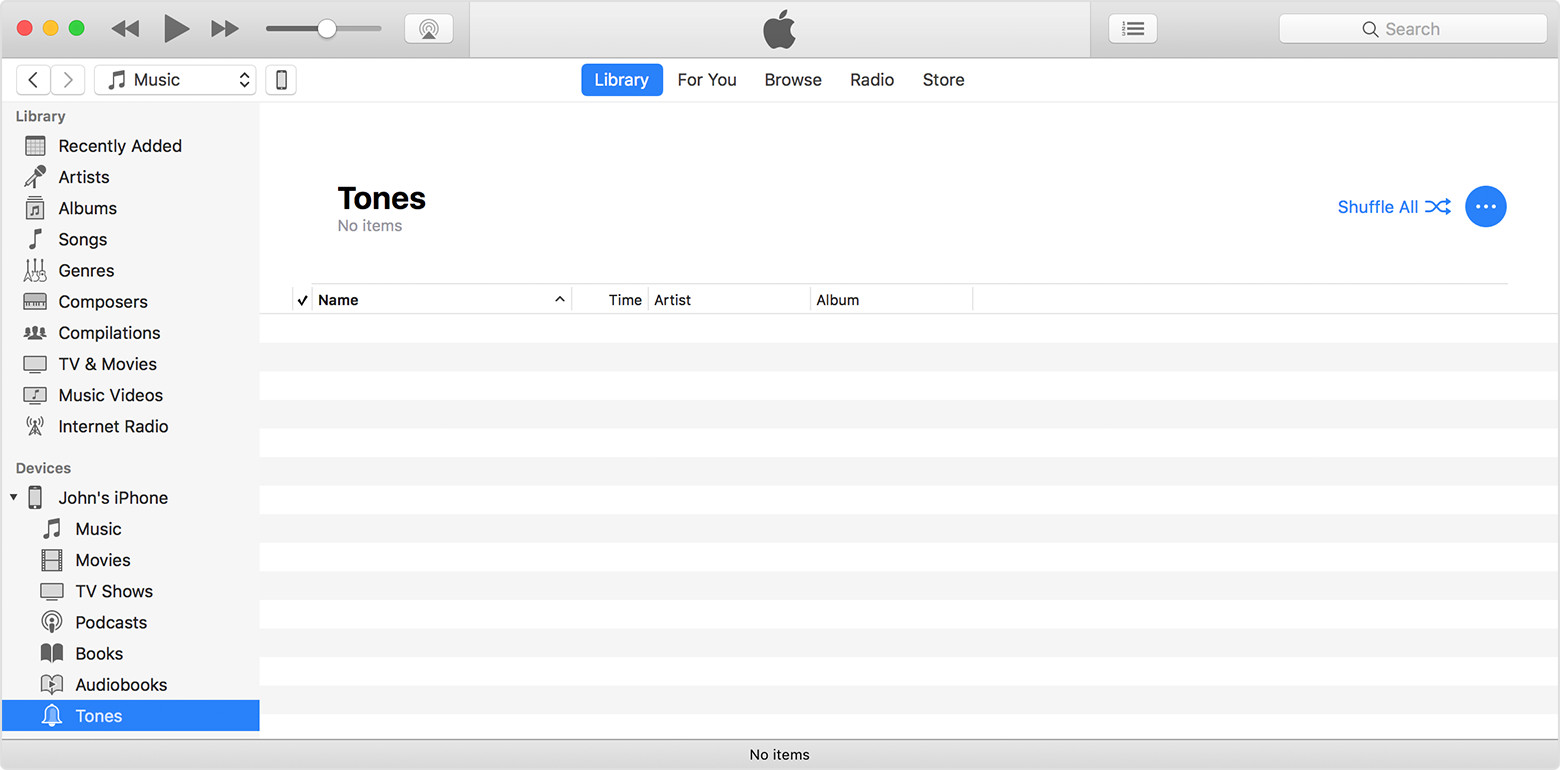
- Click on your device in the left sidebar, then click Tones.
- Paste your tone. (You can use a keyboard shortcut.)
Finding your ringtones made with Ringer
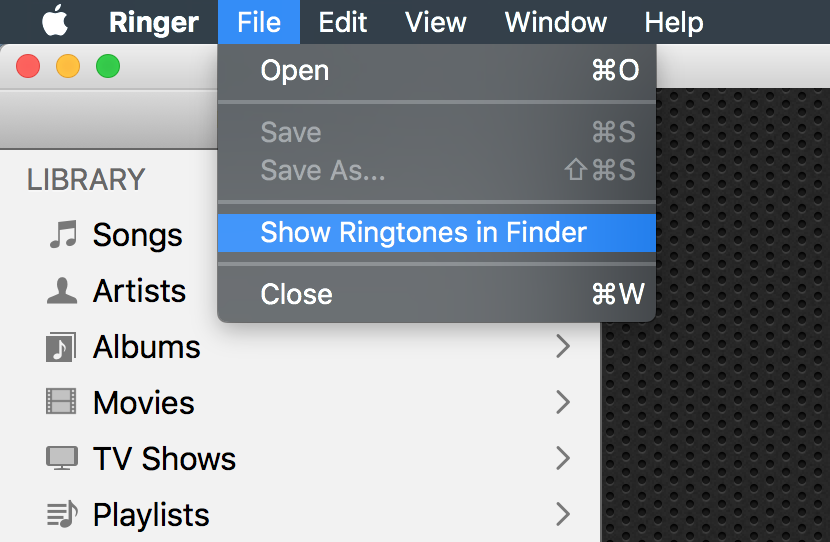
Ringer for Mac stores the ringtones it creates in a folder under its control as required by Apple for secure apps. You can show this folder in the Finder by choosing the 'Show Ringtones in Finder' item in the Ringer File menu.
In older versions of iTunes these would also be copied into iTunes when they were automatically imported by Ringer. iTunes would then store the tones into the iTunes Media/Ringtones folder. iTunes 12.7 no longer imports ringtones and thus does not copy the ringtone files.
Using the instructions from Apple you can copy the ringtone file you made and paste it into iTunes.
Comments
0 comments
Please sign in to leave a comment.